Configure Locations
Set up and manage multiple gym locations within a single Adsu account.
Adsu supports multiple gym locations from a single account. Each location operates as an independent unit with its own integrations, funnel stages, tracking script, contacts, and revenue data. This is ideal for gym owners who run multiple facilities, franchises that manage several branches, or agencies that oversee advertising for a portfolio of gym clients.
How Multi-Location Works
Every piece of data in Adsu is scoped to a specific location. When you switch locations in the dashboard, the entire view changes — KPIs, campaigns, contacts, transactions, and journeys all reflect only the selected location's data. This strict scoping ensures that data from one gym never leaks into another.
The data hierarchy in Adsu is:
- User — Your personal login (authenticated via email)
- Account — Your business account (can have multiple team members)
- Location(s) — Individual gym facilities, each with its own configuration
- Data — Contacts, transactions, campaigns, touchpoints — all scoped per location
Location Picker
The dashboard header includes a location picker dropdown. Switching locations instantly updates all charts, tables, and metrics to show data for the selected location. Your last-selected location is remembered in your browser so it persists across sessions.
Setting Up Your First Location
Your first location is created during the Adsu onboarding process. If you completed onboarding and connected your integrations, your primary gym location is already set up. You can view and edit it in Settings > Locations.
Adding Additional Locations
Navigate to Location settings
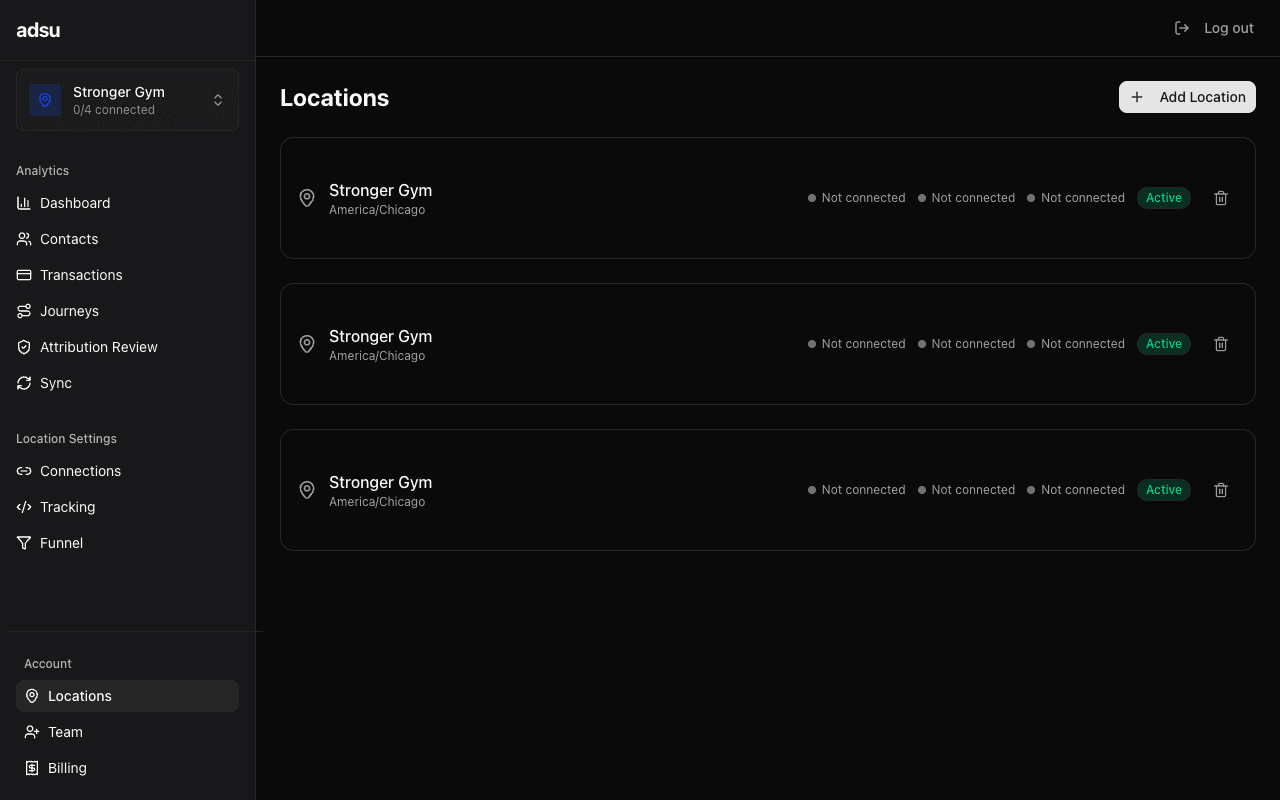
In your Adsu dashboard, go to Settings > Locations. You will see a list of your existing locations along with their connection status for each integration.
Add a new location
Click Add Location. Enter the location name (e.g., "Downtown Gym" or "West Side Fitness") and any relevant details like address or timezone. Click Create to add the location.
Connect integrations for the new location
Each location needs its own set of integrations. Navigate to Settings > Connections while the new location is selected in the location picker. Connect:
- GoHighLevel — The GHL sub-account for this specific gym location. Each location typically has its own GHL sub-account.
- Meta Ads — The ad account running ads for this location. Multiple locations can share an ad account if you use the same account for all gyms, but each can also have its own.
- Google Ads — The Google Ads customer account for this location.
- Stripe POS — The Stripe account where this location processes payments. Each location typically has its own Stripe account, but they can share one if needed.
Configure funnel stages
Each location has its own funnel stage configuration. Navigate to Settings > Funnel with the new location selected, choose the GHL pipeline for this location, and map the stages. See Configure Funnel Stages for details.
Install the tracking script
Get the tracking script for the new location from Settings > Tracking (with the location selected) and install it on that gym's website. Each location has a unique data-location ID in the script tag. See Install Tracking Script for details.
Verify the setup
Switch to the new location using the location picker in the dashboard header. Check the Sync page to confirm data is flowing, and the Connections page to verify all integrations show a green "Connected" status.
Location-Specific Integrations
Each location maintains completely independent integration configurations. This means:
- Separate GHL sub-accounts — Each location connects to its own GHL sub-account. Contacts, pipelines, and calendars are all location-specific.
- Separate or shared ad accounts — Locations can use the same Meta or Google ad account (if you run all ads from one account) or connect different ad accounts per location.
- Separate Stripe accounts — Each location can connect its own Stripe account. This is the most common setup since gyms typically have separate merchant accounts per facility.
- Separate tracking scripts — Each location has its own tracking script with a unique location ID. Install the correct script on each gym's website.
- Separate funnel configurations — Each location can map to a different GHL pipeline with different stage names, giving you flexibility if locations run different sales processes.
Cross-Location Considerations
While data is strictly scoped per location, there are some scenarios to be aware of when managing multiple locations:
- Shared ad accounts — If two locations share a Meta or Google ad account, the same campaign data is synced to both locations. Campaign-level spend will appear in both locations' dashboards. Attribution to specific contacts is still per-location since contacts are scoped to a single location.
- Contacts do not cross locations — A contact belongs to exactly one location. If the same person visits two of your gyms, they will exist as separate contacts in each location. This is by design to keep attribution clean.
- Billing is per-account, not per-location — Your Adsu subscription covers your account, and your plan determines how many locations you can manage. See Billing for plan details.
Team Access
Team members added to your account can access all locations by default. Roles are set at the account level:
- Owner — Full access to all locations, settings, billing, and team management.
- Admin — Can manage integrations, view data, and configure settings for all locations. Cannot manage billing or remove the owner.
- Viewer — Read-only access to dashboard data for all locations. Cannot change settings or manage integrations.
Manage team members and their roles on the Settings > Team page.
Agency Use Case
If you are an agency managing multiple gym clients, create a single Adsu account and add each client's gym as a location. Connect each location to the client's own GHL sub-account, ad accounts, and Stripe account. Use the location picker to switch between clients in the dashboard. Add client team members as Viewers so they can see their own data.
Managing Existing Locations
To edit a location, go to Settings > Locations and click on the location you want to modify. You can:
- Update the location name and details
- View the connection status for each integration
- Disconnect and reconnect integrations
- Deactivate a location (stops syncing and hides it from the location picker, but preserves historical data)
Troubleshooting
- Data appearing in the wrong location — Check that you have the correct location selected in the location picker before connecting integrations or viewing data. Also verify that each gym's website has the tracking script with the correct location ID.
- Cannot add more locations — Your Adsu subscription plan may limit the number of locations. Check Settings > Billing to see your plan's location limit and upgrade if needed.
- Integration connected to wrong location — Disconnect the integration from the incorrect location (Settings > Connections), switch to the correct location using the picker, and reconnect.
- Historical data missing after adding a location — When you connect integrations to a new location, Adsu automatically backfills 90 days of historical data. Check the Sync page to confirm the backfill completed. If data is still missing, try triggering a manual sync from the Sync page.