Install Tracking Script
Add the Adsu tracking script to your gym's website to capture visitor activity.
The Adsu tracking script (t.js) is a lightweight JavaScript snippet that runs on your gym's website. It captures page views, form submissions, UTM parameters, and click IDs (like fbclid from Facebook and gclid from Google) — all the signals needed to connect anonymous website visitors to the ads that brought them in.
Without the tracking script, Adsu can still attribute leads that come directly through Meta Lead Forms or GHL. But with the script installed, you capture the full picture: every website visit, every page viewed, and every form submission — giving you much richer attribution data and more accurate multi-touch models.
What the Script Tracks
- Page views — Every page load on your website, including the URL, referrer, and timestamp.
- Form submissions — When a visitor fills out a contact form, opt-in form, or application on your site. The script captures the form data (name, email, phone) to create or update contacts in Adsu.
- UTM parameters — Campaign tracking parameters (utm_source, utm_medium, utm_campaign, utm_content, utm_term) are captured from the URL and attached to the visitor's session.
- Click IDs — Facebook click IDs (fbclid) and Google click IDs (gclid) are extracted from the URL. These are critical for linking visitors to specific ad clicks.
- Visitor fingerprint — A privacy-respecting visitor identifier is generated to link multiple page views to the same visitor session, even before they fill out a form.
Installation Steps
Get your tracking script snippet
In your Adsu dashboard, navigate to Settings > Tracking. You will see a pre-generated script tag with your location ID already filled in. Click Copy to copy it to your clipboard.
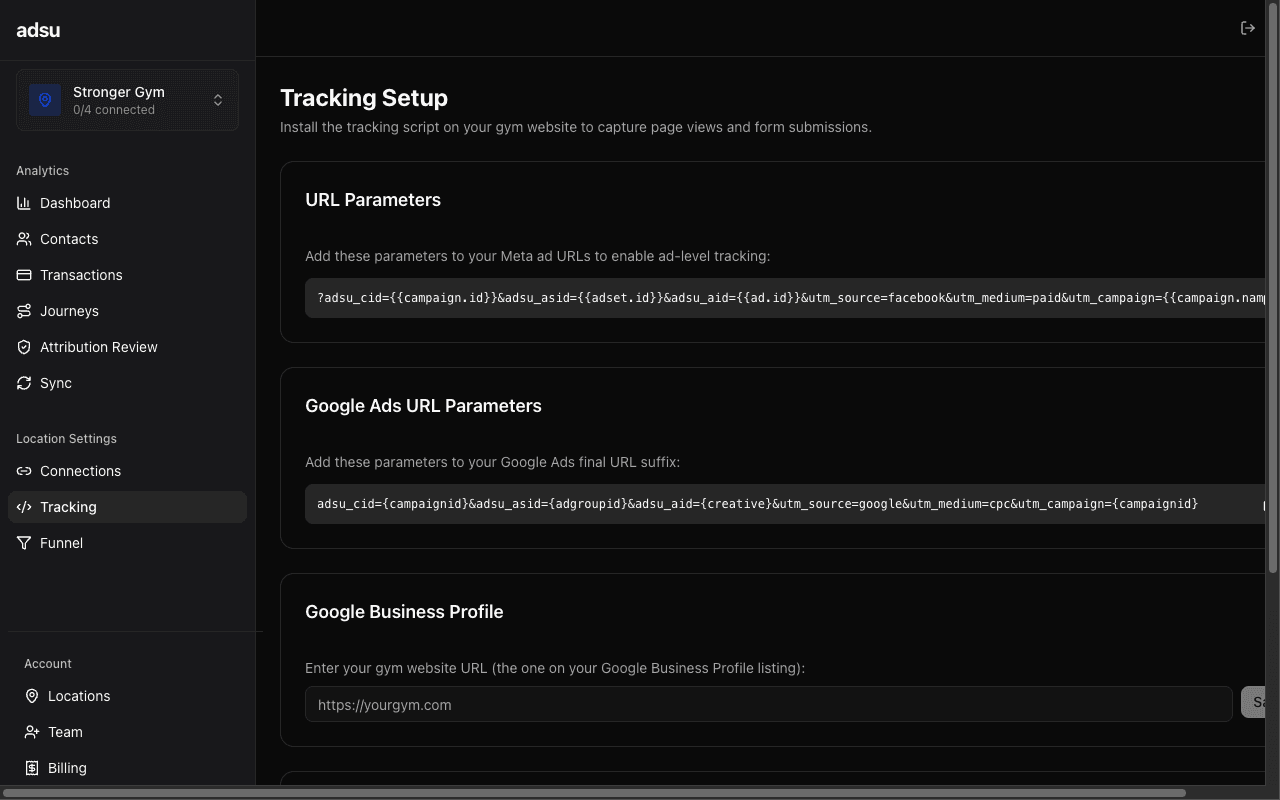
The script tag looks like this:
<script src="https://adsu.ai/t.js" data-location="YOUR_LOCATION_ID" async></script>Replace YOUR_LOCATION_ID with your actual location UUID. If you copy the snippet from the Settings page, this will already be filled in for you.
Add the script to your website's <head> tag
Paste the script tag into the <head> section of your gym's website. The exact method depends on your website platform:
- WordPress — Use a plugin like "Insert Headers and Footers" or add it to your theme's
header.phpfile. - GoHighLevel Funnels/Websites — Go to your funnel or website settings, find the "Custom Code" or "Head Tracking Code" section, and paste the script there.
- Squarespace — Go to Settings > Advanced > Code Injection and paste in the Header section.
- Wix — Use the Custom Code feature under Settings > Custom Code, add to the Head section, and apply to all pages.
- Custom HTML — Paste directly inside the
<head>tag of every page, or in a shared header template.
Verify the script is loading
Open your gym's website in a browser and open the developer tools (right-click > Inspect > Network tab). Filter by "t.js" and reload the page. You should see a request to https://adsu.ai/t.js with a 200 status code.
You should also see subsequent requests to https://adsu.ai/api/collect as the script sends page view events. These requests confirm the script is loading and transmitting data correctly.
Test form tracking
Submit a test form on your website with a recognizable email address. Within a few minutes, check Dashboard > Contacts in Adsu — you should see a new contact created with the email you submitted. The contact's journey will show the page views and form submission event.
Testing with UTM Parameters
To test full attribution tracking, visit your website with UTM parameters appended to the URL. For example:
https://yourgym.com/?adsu_cid=123&utm_source=fb_ad&utm_medium=test_adset&utm_campaign=test_campaign&fbclid=test123
Then fill out a form. The resulting contact in Adsu should show the UTM data and fbclid in their touchpoints, confirming end-to-end tracking is working.
How the Tracking Script Works
Understanding the script's behavior helps you troubleshoot issues and set expectations:
- Script loads asynchronously — The
asyncattribute ensures the script does not block your page from rendering. It loads in the background with zero impact on your website's page speed. - Page view event fires on load — As soon as the script initializes, it sends a page view event to
/api/collectwith the current URL, referrer, UTM parameters, and any click IDs found in the URL. - Form submissions are detected automatically — The script monitors form submit events on the page. When a form is submitted, it captures the form data (name, email, phone fields) and sends a form submission event.
- sendBeacon for reliable delivery — When a visitor navigates away from the page or closes the tab, the script uses the browser's
sendBeaconAPI to ensure the event data is delivered even during page unload. This is more reliable than standard AJAX requests for exit events. - Rate limiting — The collection endpoint enforces a rate limit of 100 requests per minute per IP address to prevent abuse. Normal browsing behavior will never hit this limit.
Data Flow
Here is how tracking data moves through Adsu after the script fires:
- The script sends an event to
/api/collectcontaining the page URL, visitor fingerprint, UTM parameters, click IDs, and any form data. - The collection endpoint stores the event as a page event in the database. If form data includes an email or phone, a contact record is created or updated.
- The matching engine (runs every 30 minutes) links page events and contacts to ad touchpoints using click IDs, UTM parameters, and visitor fingerprints.
- When the matched contact later makes a purchase through Stripe, the revenue is attributed back through the touchpoint chain to the original ad.
Multi-Location Setup
If you manage multiple gym locations, each location has its own unique data-location ID. Make sure each gym website (or landing page) uses the tracking script with the correct location ID. You can find each location's script snippet on its respective Settings > Tracking page.
One Location ID Per Page
Do not include multiple tracking scripts with different location IDs on the same page. Each page should have exactly one Adsu tracking script with the location ID that corresponds to that gym's location. If you have a shared corporate site, use the primary location's ID or create location-specific landing pages.
Privacy and Performance
- Lightweight — The t.js script is small and loads asynchronously. It adds negligible overhead to your page load time.
- No cookies — The script uses a visitor fingerprint stored in the browser rather than third-party cookies, making it compatible with modern privacy regulations.
- First-party data only — All data is sent directly to your Adsu instance at adsu.ai. No data is shared with third-party analytics or advertising platforms (CAPI events are sent separately through the server, not the tracking script).
Troubleshooting
- Script not loading (404 error) — Verify the script URL is exactly
https://adsu.ai/t.js. Check for typos in the script tag. - No requests to /api/collect — Check the browser console for JavaScript errors. Ensure the
data-locationattribute contains a valid UUID. Ad blockers may also interfere — test in an incognito window with extensions disabled. - Form submissions not being captured — The script detects standard HTML form submissions. If your website uses a JavaScript-based form (React, AJAX submissions) that does not trigger the native form submit event, the script may not capture it. Contact support for help with custom form integrations.
- Contacts created but missing UTM data — Make sure your ad campaign URLs include proper UTM parameters. The script can only capture what is present in the URL when the visitor arrives.
- Duplicate page views — If you see duplicate events, check that the tracking script is not included twice on the page (common when using both a plugin and manual installation).