Campaign Performance
Analyze spend, leads, and revenue per campaign across Meta and Google Ads.
The Campaigns page is where you evaluate individual campaign performance. Unlike the Dashboard Home, which shows rolled-up totals, this page breaks everything down by campaign so you can see exactly where your money is going and what each campaign is returning.
Adsu pulls campaign data from both Meta (Facebook and Instagram) and Google Ads. Campaigns from both platforms appear in a single, unified table, making it easy to compare performance across channels without switching between ad managers.
Campaign Table
The main view is a sortable, filterable table with one row per campaign. Each row displays the following columns:
- Campaign Name — The name of the campaign as it appears in your Meta or Google ad account. Adsu syncs these names directly from the platform APIs.
- Platform — Whether the campaign is running on Meta (Facebook/Instagram) or Google Ads. Displayed as an icon badge next to the campaign name.
- Spend — Total amount spent on the campaign during the selected date range. This is the actual billed amount from the ad platform.
- Impressions — How many times the campaign's ads were displayed to users.
- Clicks — The number of clicks the campaign received. For Meta, this includes link clicks. For Google, this is the standard clicks metric.
- Leads — The number of new contacts attributed to this campaign. A lead is counted when a contact's first touchpoint maps to an ad in this campaign.
- Revenue — Total attributed revenue from Stripe POS payments linked to contacts who interacted with this campaign. The amount shown depends on your selected attribution model.
- ROAS — Revenue divided by spend for this specific campaign. This is the per-campaign return on ad spend. Campaigns with no spend show a dash instead of a number.
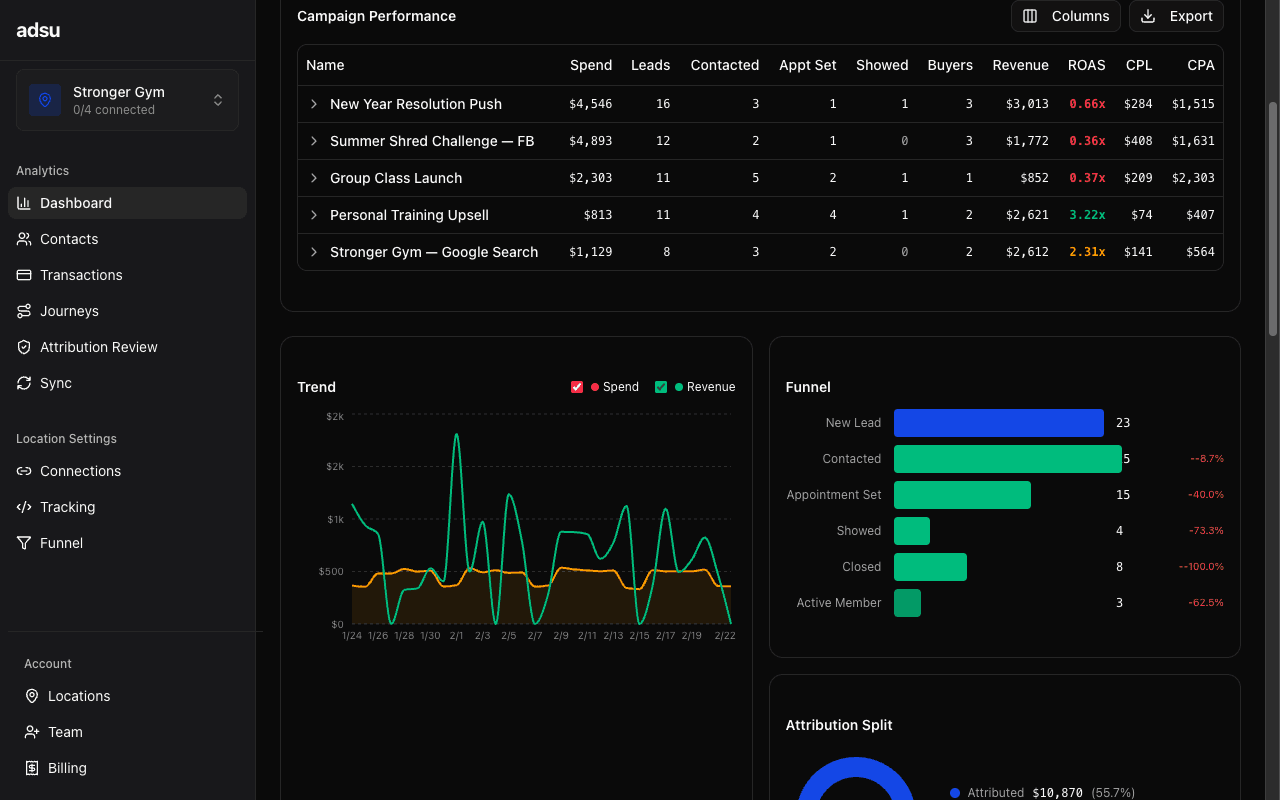
Click any column header to sort the table by that metric. Click again to reverse the sort order. This makes it easy to find your top-spending campaigns, highest-revenue producers, or worst-performing outliers.
Drilling Down: Ad Sets and Ads
Click on any campaign row to expand it and reveal the ad sets within that campaign. Each ad set shows the same metrics as the campaign level: spend, impressions, clicks, leads, revenue, and ROAS. Click on an ad set to drill further into individual ads.
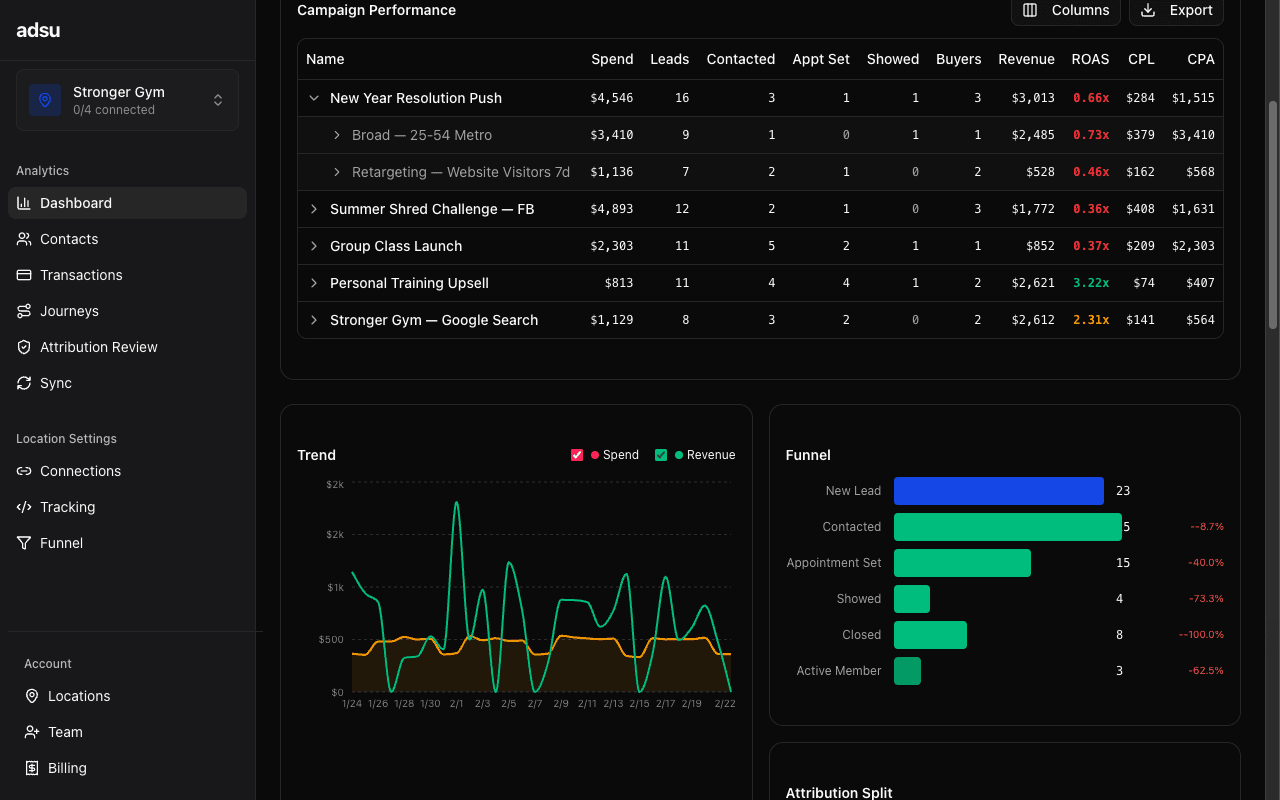
This three-level hierarchy (Campaign, Ad Set, Ad) mirrors the structure of Meta and Google ad accounts. It lets you pinpoint exactly which creative, audience, or placement is driving results. For example, you might discover that a campaign has strong overall ROAS, but most of the revenue comes from a single ad set targeting a specific audience.
Filtering and Search
Above the table, you can filter campaigns by platform (Meta, Google, or both) and search by campaign name. The search is instant and matches partial text, so typing "spring" will surface any campaign with "spring" in the name.
All filters work in combination with the global date range and attribution model selectors. Changing the date range updates every number in the table. Switching the attribution model recalculates how revenue is distributed across campaigns.
Sync frequency
Campaign spend, impressions, and clicks sync from Meta and Google every 6 hours. If you have recently launched or paused a campaign and do not see the latest data, you can trigger an on-demand sync from the Sync Status page. Lead and revenue numbers update as contacts and transactions flow in from GHL and Stripe, which sync more frequently (every 30 minutes and hourly, respectively).Understanding Attribution at the Campaign Level
The revenue and ROAS columns on the Campaigns page are attribution-model dependent. This means the same campaign can show different revenue figures depending on whether you select First Touch, Last Touch, Linear, or Time Decay.
For example, consider a contact who clicked a "Free Trial" campaign ad, later clicked a "Summer Sale" retargeting ad, and then signed up for a $150/month membership. Under First Touch, the Free Trial campaign gets 100% of the $150. Under Last Touch, the Summer Sale campaign gets 100%. Under Linear, each gets $75.
This is why it is valuable to switch between models when reviewing campaign performance. A campaign might look average under First Touch but excellent under Last Touch, indicating it is strong at closing leads who were originally captured by other campaigns.
Practical Tips
- Sort by ROAS descending to quickly identify your most efficient campaigns. These are the ones turning ad dollars into the most gym revenue.
- Sort by spend descending to check that your highest-spend campaigns are actually producing proportional returns. A high-spend, low-ROAS campaign is a prime candidate for optimization.
- Compare leads vs. revenue to spot campaigns that generate many leads but little revenue. This often points to a lead quality issue or a gap in the sales follow-up process for that campaign's audience.
- Drill into ad sets when a campaign has mixed results. Often, one audience segment or placement is outperforming the others, and the overall campaign numbers obscure this.
- Use the Linear model when comparing campaigns in a multi-touch environment. It gives the most balanced view of how each campaign contributes to the overall conversion path.
Data Sources
Campaign data comes from two sources. Spend, impressions, and clicks are synced directly from the Meta Graph API and Google Ads API. Lead counts and revenue figures are computed by Adsu's attribution engine, which links contacts and transactions to ad touchpoints using the matching engine.
This means campaign metrics in Adsu may differ slightly from what you see in Meta Ads Manager or Google Ads. The spend numbers will match (they come from the same API), but leads and revenue are Adsu-specific metrics based on closed-loop attribution to actual Stripe payments, not platform-reported conversions.