Sync Status
Monitor the health and timing of all data syncs across your integrations.
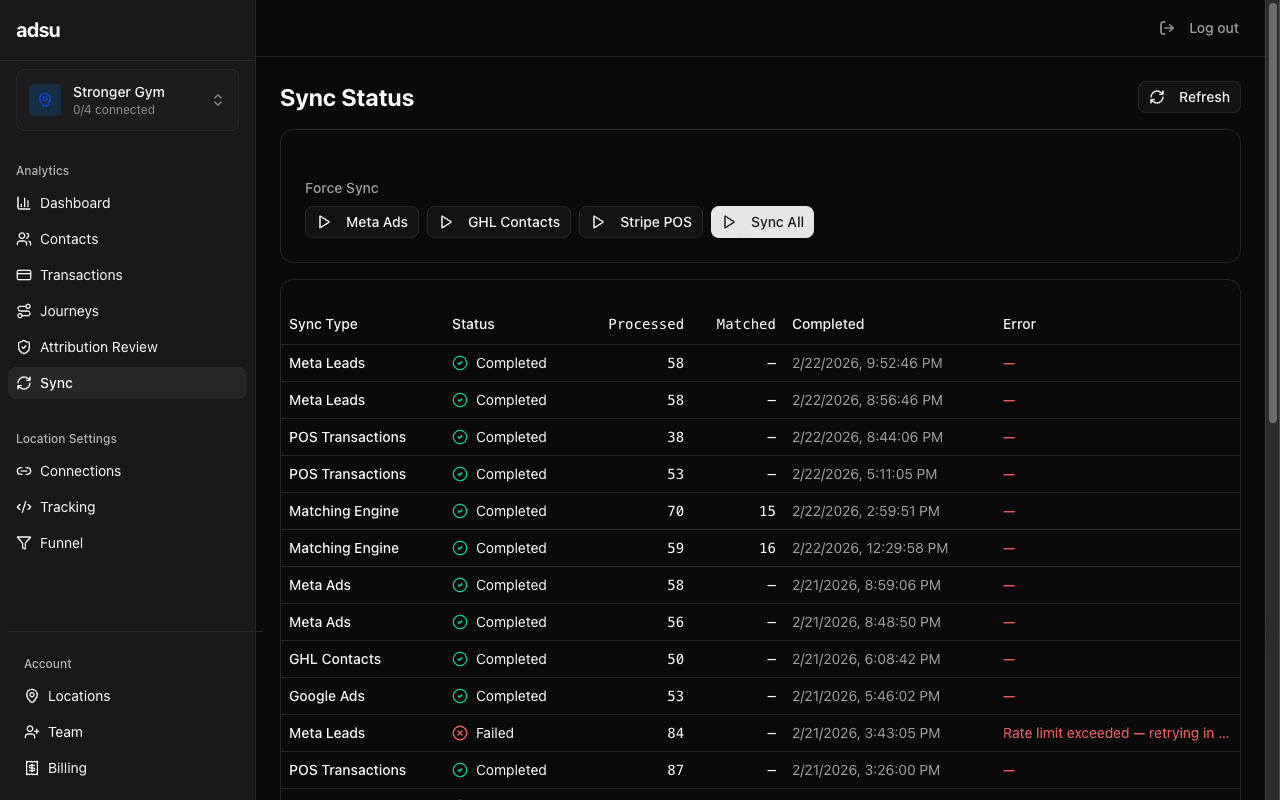
The Sync Status page gives you visibility into the background processes that keep your Adsu dashboard current. Every number you see on the dashboard comes from data synced from your connected integrations: Meta and Google for ad spend, GoHighLevel for contacts and pipeline data, and Stripe for payments. This page shows you when each sync last ran, what it processed, and whether anything went wrong.
Integration Sync Overview
The page displays a card for each integration sync, showing its current health status. Each card includes:
- Last Sync Time — When the sync last completed successfully. If a sync has not run recently, this timestamp helps you understand how current your data is.
- Records Processed — How many records were created or updated in the last sync run. For Meta insights, this is the number of campaign/ad set/ad data points updated. For GHL contacts, this is the number of contacts synced. For Stripe, this is the number of transactions pulled.
- Status — A green, yellow, or red indicator showing whether the sync is healthy, delayed, or failing. Green means the sync completed successfully on its last run. Yellow indicates a recent failure that may resolve on the next run. Red indicates repeated failures that need attention.
- Errors — If the last sync encountered errors, they are displayed here with a brief description. Common errors include expired tokens, rate limit hits, and API timeouts.
Sync Schedules
Each integration syncs on a fixed schedule. Understanding these schedules helps you set expectations for data freshness:
- Meta Ad Insights — Every 6 hours. Syncs campaign, ad set, and ad-level spend, impressions, and clicks for the past 7 days. The 7-day lookback ensures that any delayed reporting from Meta is captured on subsequent syncs.
- Meta Leads — Every 30 minutes. Polls Meta lead forms as a catch-up mechanism for any leads that might have been missed by the real-time webhook.
- GHL Contacts — Every 30 minutes. Syncs contacts from GoHighLevel via the contacts search API. Also runs a pipeline stage catch-up sync to ensure contact funnel stages are current, even if a webhook was missed.
- Stripe POS Transactions — Every hour. Pulls charges from your gym's connected Stripe account for the past 7 days. The lookback window covers any delayed charge processing.
- Google Ad Insights — Every 6 hours. Syncs campaign- level spend, impressions, and clicks from Google Ads, similar to the Meta insights sync.
- Matching Engine — Every 30 minutes. Runs the identity resolution engine across all new and unmatched contacts, linking them to ad touchpoints and transactions.
Manual Sync
Each integration card includes a manual sync button. Clicking it triggers an immediate on-demand sync for that specific integration. This is useful when:
- You have just connected a new integration and want data immediately rather than waiting for the next scheduled sync.
- You know a campaign was recently updated in Meta or Google and want to see the latest spend numbers right away.
- A previous sync failed and you want to retry it after resolving the underlying issue (like refreshing an expired token).
- You have recently added contacts in GHL and want them to appear in Adsu before the next scheduled sync.
Manual syncs run the same logic as scheduled syncs. They process the same date range and use the same upsert logic, so triggering a manual sync is always safe. It will never create duplicate records.
On-connect backfill
When you first connect an integration, Adsu automatically triggers a backfill sync that pulls up to 90 days of historical data. This is separate from the regular sync schedule and uses larger date windows and enrichment limits. You do not need to trigger this manually — it happens automatically during the connection flow.Integration Health Checks
In addition to the regular data syncs, Adsu runs an integration health check every 6 hours. This check verifies that each connected integration is still operational:
- Meta — Verifies that the access token is still valid and the ad account is accessible. If the Meta token is nearing its 60-day expiry, Adsu sends you an email warning.
- GoHighLevel — Confirms the OAuth token is valid and refreshes it if needed. GHL tokens are automatically refreshed hourly, so token expiry is rarely an issue here.
- Stripe POS — Checks that the connected Stripe account is still authorized and accessible.
Meta token expiry
Meta access tokens expire after 60 days and cannot be automatically refreshed. When your Meta token expires, all Meta syncs (insights, leads, and CAPI events) will stop until you re-authorize. Adsu sends email warnings starting 7 days before expiry, but it is important to re-authorize promptly. You can re-authorize from Settings > Connections > Meta Ads.GHL Token Refresh
Unlike Meta, GoHighLevel tokens can be automatically refreshed. Adsu runs a token refresh job every hour that checks for GHL tokens expiring within 2 hours and refreshes them proactively. This means GHL connectivity is maintained indefinitely without any action from you.
If a GHL token refresh fails for any reason, the Sync Status page will show the error. In rare cases, you may need to re-authorize the GHL connection from Settings > Connections.
Sync Log History
Below the integration cards, a sync log table shows the history of all sync runs. Each entry includes:
- Sync Type — Which integration the sync ran for (Meta Insights, Meta Leads, GHL Contacts, Stripe POS, Google Insights, or Matching Engine).
- Started At — The timestamp when the sync began.
- Completed At — When the sync finished. The difference between started and completed gives you the sync duration.
- Status — Whether the sync completed successfully, completed with warnings, or failed.
- Records — The number of records created, updated, or matched during the sync.
- Errors — Any error messages logged during the sync run.
This log is useful for diagnosing data gaps. If you notice missing data on a specific date, check the sync log to see if a sync failed around that time. Most sync failures are transient (API timeouts, temporary rate limits) and resolve on the next run.
Troubleshooting Sync Issues
If a sync is consistently failing, here are the most common causes and solutions:
- Expired Meta token — Re-authorize your Meta connection from Settings > Connections > Meta Ads.
- GHL API errors — Usually transient. If persistent, check that your GHL account is still active and the Adsu app is still authorized in your GHL marketplace settings.
- Stripe connection lost — If your gym disconnected Adsu from their Stripe account, the POS sync will fail. Reconnect from Settings > Connections > Stripe POS.
- Google Ads token refresh failure — Google tokens refresh automatically on each API call. If refreshes fail, you may need to re-authorize from Settings > Connections > Google Ads.
For persistent issues that you cannot resolve from the Connections settings page, see the Troubleshooting guide for more detailed diagnostics.