Dashboard Home
Your at-a-glance view of ad spend, revenue, and key attribution metrics.
The Dashboard Home is the first page you see after logging in. It is designed to answer the most important question for any gym running paid ads: Is my advertising spend generating a positive return? Everything on this page rolls up your campaign data, contact pipeline, and Stripe revenue into a single, unified view.
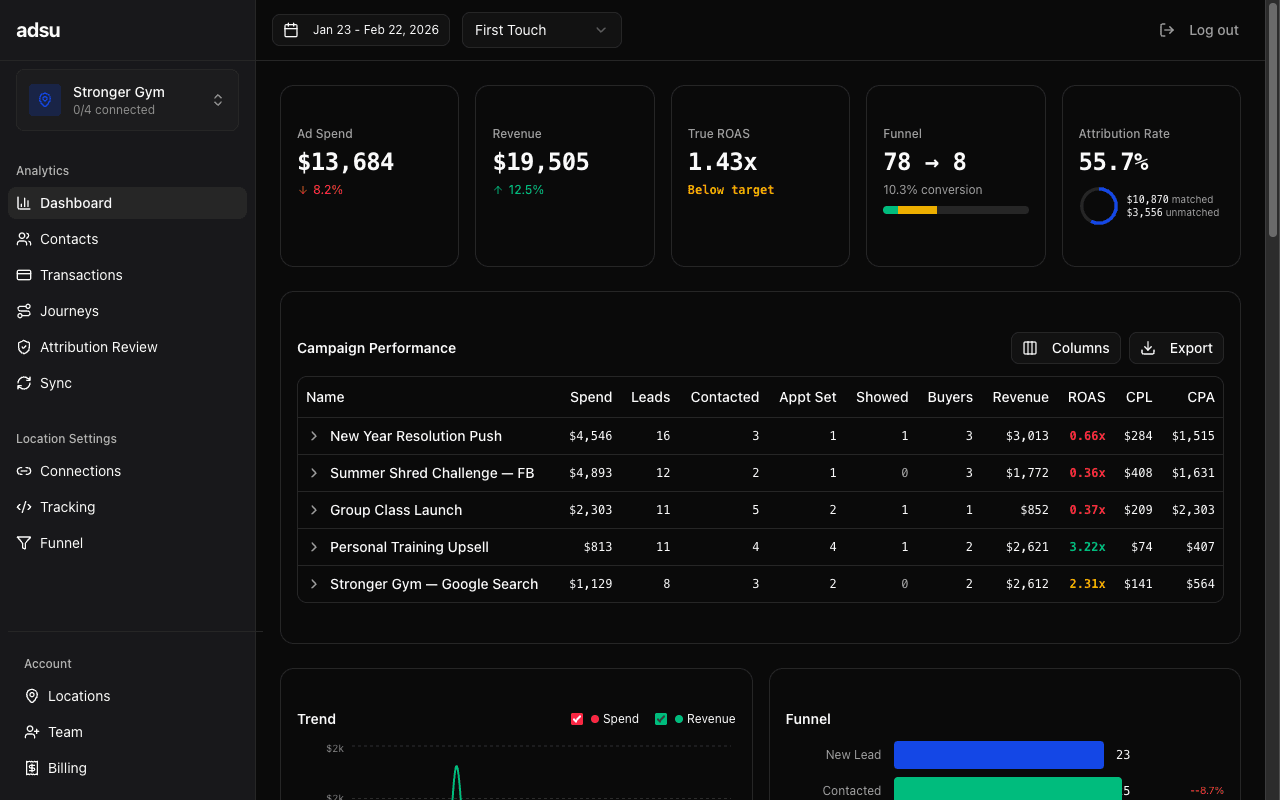
KPI Cards
Across the top of the dashboard, you will see a row of key performance indicator cards. Each card displays the current value for your selected date range along with a percentage change compared to the previous period.
- Total Ad Spend — The combined amount spent across all connected Meta and Google ad campaigns for the selected date range. This pulls directly from the ad platform APIs, so it matches what you see in Facebook Ads Manager or Google Ads.
- Attributed Revenue — The total Stripe POS revenue that Adsu has matched back to your ad campaigns. This is the closed-loop number: actual payments from real customers, tied to the ads that brought them in.
- ROAS (Return on Ad Spend) — Attributed revenue divided by ad spend. A ROAS of 5.0x means you earned $5 for every $1 spent on ads. This is the single most important metric for evaluating your ad performance.
- Cost Per Lead — Total ad spend divided by the number of new leads generated. This tells you how much you are paying to acquire each new prospect, regardless of whether they convert.
- New Leads — The count of new contacts created during the selected date range. These come from Meta lead forms, Google form fills, your website tracking script, or GHL contact creation.
- Appointments — The number of contacts who reached the appointment_set stage during the selected period. This counts contacts who booked an appointment, whether through GHL calendar booking or manual pipeline advancement.
- Closed Deals — The number of contacts who reached the closed stage, meaning they made their first payment. This is your conversion count: leads who became paying customers.

Each KPI card shows a green or red indicator based on whether the metric improved or declined compared to the previous equivalent period. If you are viewing the last 30 days, the comparison is against the 30 days before that.
Trend Chart
Below the KPI cards, a time-series chart shows ad spend and attributed revenue plotted over the selected date range. This gives you a visual sense of how spend and revenue track together over time.
The chart displays two lines: one for daily ad spend (across all platforms) and one for daily attributed revenue. Hovering over any point reveals the exact values for that day. You can quickly spot patterns like revenue lagging behind spend increases, or identify days where a campaign spike led to a surge in sign-ups.
Location Picker
The location picker in the top navigation bar controls which gym location's data you are viewing. Every metric, chart, and table on the dashboard filters to the selected location. If you manage a single gym, you will see just one option. For multi-location operators, this is how you switch context between gyms.
Your location selection persists across browser sessions. Adsu remembers the last location you viewed, so you do not need to re-select it every time you log in.
Date Range Selector
The date range selector sits next to the location picker. It defaults to the last 30 days, which provides a solid month-over-month view of performance. You can choose from preset ranges like last 7 days, last 14 days, last 30 days, or last 90 days. You can also set a custom date range by selecting specific start and end dates.
Changing the date range immediately updates every metric, chart, and table on the page. The comparison period adjusts automatically. For example, selecting the last 7 days compares against the 7 days before that.
Attribution Model Selector
The attribution model selector determines how revenue credit is distributed across the ad touchpoints that contributed to a conversion. Adsu supports four models:
- First Touch — 100% of the revenue credit goes to the first ad interaction. Best for understanding which campaigns are driving initial awareness and new leads into your funnel.
- Last Touch — 100% of the credit goes to the last ad interaction before the conversion. Useful for identifying which campaigns are closing deals.
- Linear — Revenue credit is split equally across all touchpoints. Good for getting a balanced view when your leads interact with multiple campaigns before converting.
- Time Decay — More credit is given to touchpoints closer to the conversion, with earlier touchpoints receiving progressively less. This reflects the idea that recent interactions have a stronger influence on the purchase decision.
Choosing an attribution model
If you are unsure which model to use, start with First Touch. For gyms, the first ad that brought someone in the door is usually the most actionable insight, because it tells you which campaigns are filling the top of your funnel. Switch between models to compare and look for campaigns that consistently perform well across all four.Reading the Dashboard
Here is a practical way to use the Dashboard Home in your weekly review:
- Check your ROAS first. If it is above your target (typically 3x or higher for gym ads), your campaigns are performing well overall.
- Look at the trend chart. Is revenue tracking with spend, or is there a lag? A consistent gap between spend and revenue could indicate a pipeline bottleneck.
- Compare new leads against appointments and closed deals. A healthy funnel should show a reasonable conversion rate at each stage. If leads are high but appointments are low, your follow-up process may need attention.
- Check cost per lead. If it has spiked recently, investigate which campaigns are driving up acquisition costs on the Campaigns page.
The Dashboard Home gives you the high-level answers. For deeper investigation, drill into the Campaigns, Contacts, or Journeys pages using the sidebar navigation.